
Third-party Credential Providers
Credential providers are extensibility points in Windows that allow authentication components to integrate with the Windows sign-in process. The Specops Client implements credential providers to support scenarios for uReset, Specops Password Reset, MFA for Windows and Dynamic Feedback at Password Change.
In the Microsoft credential provider framework, multiple credential providers can co-exist by using a wrapping mechanism. With wrapping, one credential provider extends another provider instead of replacing it. The wrapping provider forwards calls to the underlying provider while adding its own functionality on top. Microsoft does not provide a general-purpose architecture in which wrapping can always be expected to work automatically. Therefore, it is important to verify such scenarios before deployment.
The Specops Client supports co-existing with the built-in Microsoft credential providers Microsoft Password Credential Provider and Microsoft Windows Hello for Business PIN, and with some third-party credential providers that are wrapped automatically when installed together with Specops Client, see Automatically Wrapped Credential Providers.
In addition, there are third-party credential providers that may require additional configuration before they can be wrapped, see Configure Manual Wrapping of Credential Providers.
Note
Using wrapping on systems where credential providers other than the built-in Microsoft providers and the Specops credential providers are installed introduces additional risk. It is important to validate these scenarios in a staging environment before installing, updating, or changing either Specops Client or the third-party credential provider.
Determine if Other Credential Providers are Installed
Before installing the Specops Client, investigate if other credential providers are installed on the organization's client computers. Typically, if MFA for Windows systems or disk encryption systems other than Microsoft's are being used, third-party credential providers can be installed.
How to determine which credential providers are installed:
- Ask organization administrators with knowledge of the software deployed on client computers to confirm which credential providers are installed.
- Review Installed Programs in the Windows Control panel to see if there are credential providers and/or MFA solutions installed.
- Check the the Windows logon screen in Windows, if the behavior is customized or indicates other credential providers are installed.
- Check the Windows logon screen for customized behavior or indications that other credential providers are installed.
- Look in the Windows Registry under
[HKEY_LOCAL_MACHINE\SOFTWARE\Microsoft\Windows\CurrentVersion\Authentication\Credential Providers]to see whether any of the subkeys belong to non-Microsoft credential providers.
Contact Specops Support for guidance if needed.
Automatically Wrapped Credential Providers
If the third-party credential providers listed in the table below are installed together with the Specops Client, they are automatically wrapped.
Note
Do NOT configure wrapping for these credential providers, this is handled automatically by the Specops credential providers.
In addition, do NOT configure the Windows registry or ADMX policy setting Assign a default credential provider.
| Credential Provider | GUID |
|---|---|
| Microsoft | {60B78E88-EAD8-445C-9CFD-0B87F74EA6CD} |
| Microsoft WHfB PIN | {D6886603-9D2F-4EB2-B667-1971041FA96B} |
| McAfee | {31348146-F794-4BEB-9D39-E411BFF979EE} |
| Imprivata | {11660363-781C-617B-0100-128274950001} |
| Ivanti Pulse OneX | {4B9CAC01-6732-40D0-8B8F-B5B340F9D44F} |
| Ivanti Pulse | {4EFD0F35-BFBA-44EB-8F25-2B3530203C1D} |
| RSA | {BBFC6CF6-6FB2-4912-B8E0-C47844D1003D} |
| Fortinet FAC Agent | {F98AC68D-AE8E-47D8-AB82-F19BCB6328AB} |
Configure Manual Wrapping of Credential Providers
If an organization wants to use Specops Client together with third-party credential providers that are not wrapped automatically, additional configuration is required to allow the Specops Client to wrap them, provided that the credential provider supports being wrapped.
Before deploying Specops Client together with a manually wrapped credential provider, test and verify the configuration on a case-by-case basis.
See the next section for how to configure the Duo Security Credential Provider.
Wrapping the Duo Security Credential Provider
The Specops Client provides enhancements to the Windows logon experience by wrapping the built-in Windows credential provider. This includes allowing users to reset their passwords from the login screen, as well as enhancing the feedback users receive when changing their password via CTRL+ALT+DEL.
Duo Security’s Authentication for Windows Logon requires additional configuration in order to allow wrapping. Do the following:
-
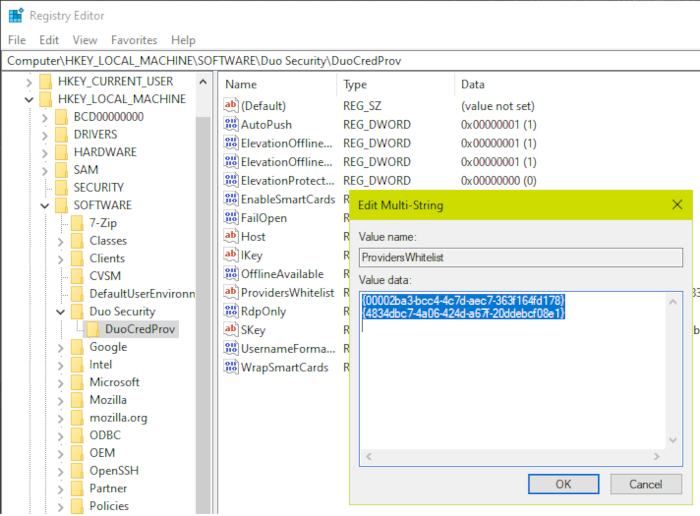
Set a registry key in the Duo Security client in order to allow wrapping. On a machine with the Duo Security client installed, create or update the following registry key:
- Key path: HKEY_LOCAL_MACHINE\SOFTWARE\Duo Security\DuoCredProv
- Value name: ProvidersWhitelist
- Value type: REG_MULTI_SZ
-
Value data: enter (or add) the following two GUIDs on separate lines — these are the GUIDs that identify the Specops Client:
- {00002ba3-bcc4-4c7d-aec7-363f164fd178}
- {4834dbc7-4a06-424d-a67f-20ddebcf08e1}
-
Next, use the Specops Authentication ADMX template to specify that the Duo Security credential provider should be wrapped. Under Specops Client Wrap Duo Security Specops Client/Enhance Windows logon and password change, set GUID of credential provider to wrap to the GUID of the Duo Security client, including the curly brackets: {44E2ED41-48C7-4712-A3C3-250C5E6D5D84}. The Specops Client, ADMX templates, and instructions for installing both can be found here.
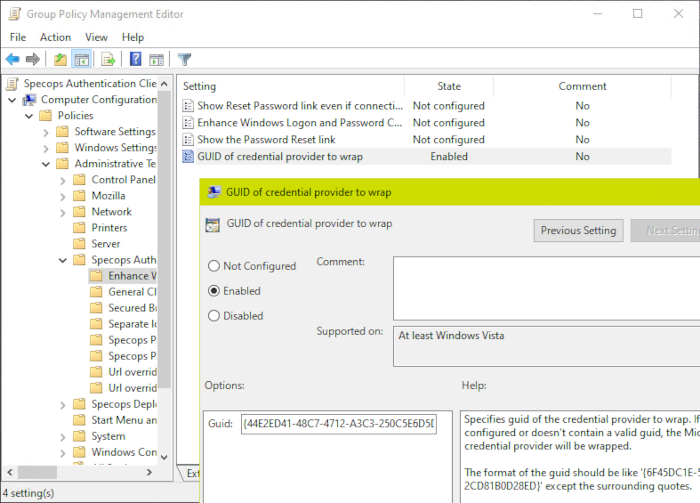
Once the group policy has been applied to the affected computers, Duo Security login functionality and Specops functionality for password change and password reset should work seamlessly together. For Specops Authentication customers, this means that the Reset Password link remains available on the logon screen, as it does on workstations where the Duo Security client is not installed.
For Dynamic Feedback at Password Change, available to uReset and Password Policy customers with Specops Client, the dynamic feedback is displayed as expected. Duo Security will prompt for MFA after the password change is submitted, as it normally would.
Duo Security and RdpOnly
By default, Duo Security MFA is invoked for both console logons and remote desktop sessions (RDP).
It is possible to configure the Duo Security second factor prompt, to be displayed only for RDP sessions by setting "RdpOnly" to 1 according to Duo Security's documentation. If using RdpOnly set to 1, it is required to configure the Specops ADMX setting Wrapping in console login sessions and set it to Disabled.
Enforce Network Level Authentication
Network Level Authentication (NLA), is already enforced in most organizations. Allowing RDP without NLA is considered insecure and should not be used.
Using the Specops Authentication credential provider without enforcing NLA is not supported.
Note
In instances where users are logging in or unlocking with the parameter User must change password at next logon set, the Duo Security credential provider does not pre-populate the password entered at login/unlock to the next screen when performing the password change. This means that when the Specops RulesUI is displayed, the current password must be entered again.