Entra Makes Passkeys the Default: How this Change Affects Specops uReset
As of mid-2026, passwordless sign-in is now the default for Microsoft Entra. Microsoft Entra now uses a new order for system-preferred authentication methods. Instead of prompting users with a list of authentication methods, Entra now automatically chooses the strongest method a user has registered, in this order:
- Temporary Access Pass (TAP)
- Passkeys (Security keys, passkeys stored in password managers, Windows Hello for Business, etc.)
- Certificate-based authentication (CBA)
- Microsoft Authenticator notifications (Passwordless)
- External MFA
- TOTP (Hardware or software TOTP, Google Authenticator, etc.)
- Telephony (SMS and voice calls)
- QR Code
- Password
This results in issues with using the “Reset password” option on the login/lock screen to initiate a password reset with Specops uReset. For customers that are using passkeys as an authentication method for Entra sign-in, because passkeys are not currently supported on the Windows login/lock screen (the prompt to use the passkey will actually be displayed in the Windows user profile behind the lock screen), users will need to cancel the passkey sign-in, then select the passwordless sign-in method with Microsoft Authenticator.
How to cancel passkey sign-in
In the Specops browser on the login/lock screen, click the small left arrow next to the username.
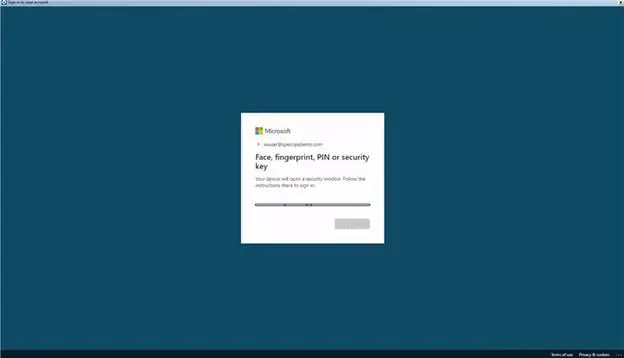
The username cannot be auto filled, so the user will need to manually enter their username again.
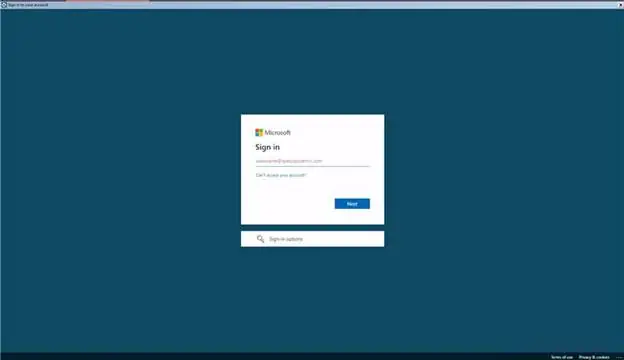
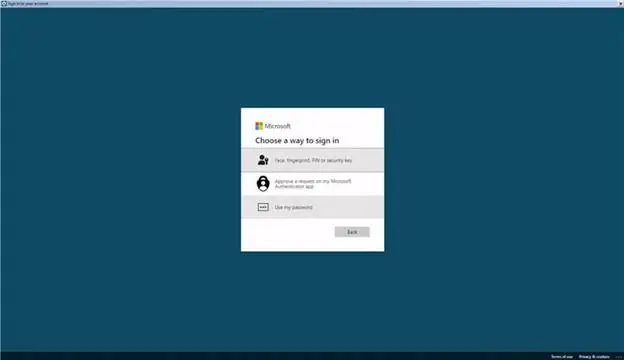
The Entra sign-in would default to passkey again, and the passkey sign-in attempt would fail, then the user would be able to select another method, such as passwordless with Microsoft Authenticator, using “Sign in another way”:
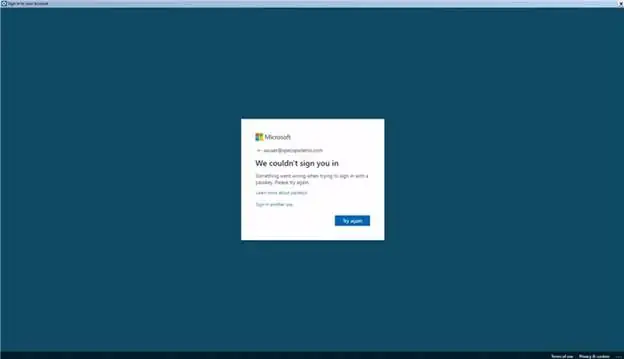
Select “Approve a request on my Microsoft Authenticator app”.
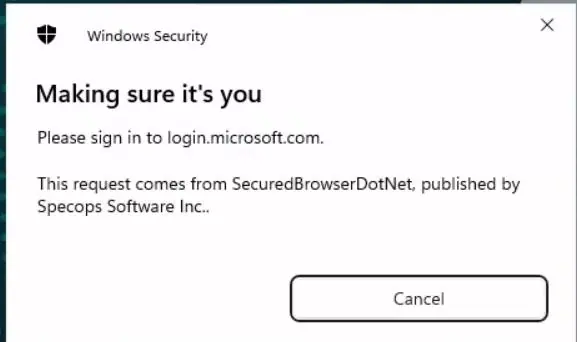
After the user completed the password reset with Specops uReset, and logged back into Windows, the user would see the passkey prompt that was not able to be displayed on the lock screen. The user would just click Cancel to disregard the prompt.
What if I want passwordless sign-in with Micosoft Authenicator as my primary MFA option?
If passwordless sign-in with Microsoft Authenticator is the desired primary authentication method, even for users that also have passkeys as an authentication method, Entra administrators can revert to the previous behavior of presenting the last-used authentication method during sign-in. The steps are below and more information can be found by going to this link: https://specopssoft.com/blog/entra-id-optimization-specops/
Sign in to https://portal.azure.com
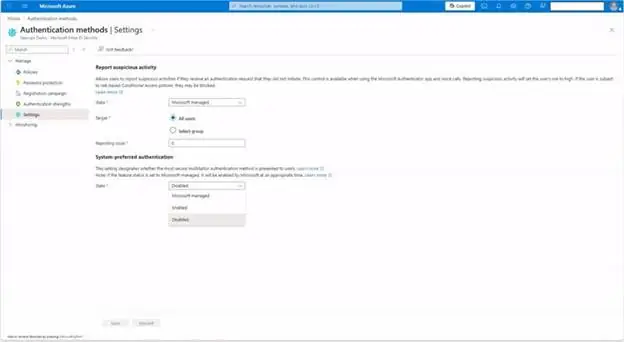
Browse to Microsoft Entra authentication methods > Settings > System-preferred authentication.
Confirm that the System-preferred authentication drop-down list is set to “Disabled”, which is the same behavior prior to this recent change. The available options are:
- Microsoft managed – System-preferred authentication applies to both first-factor and second-factor authentication. The system evaluates which credentials are registered for the user and selects the highest-ranked method for each authentication step. Users would have to cancel the passkey sign-in, then select passwordless sign-in with Microsoft Authenticator.
- Enabled – System-preferred authentication applies to second-factor only. The existing sign-in behavior continues to apply for first-factor authentication. This results in sign-in defaulting to the last used authentication method for the first factor, such as password, but the second factor will default to the highest-ranked method, such as passkey. Users will be able to select passwordless sign-in with Microsoft Authenticator.
- Disabled – No preferred method is applied to first-factor and second-factor authentication. This results in sign-in defaulting to the last used authentication method, and users can still choose their MFA method manually from a list. Users will be able to select passwordless sign-in with Microsoft Authenticator.
System-preferred authentication in Microsoft Entra ID – Microsoft Entra ID | Microsoft Learn