

Hide All Specops Client Components
Organizations may wish to deploy the Specops Client but keep all features hidden until a scheduled go-live. The ADMX Templates for the client may be used for this purpose to hide enhancements to Windows logon and password change, start menu shortcuts, and enrollment/password expiration reminders. These settings may be applied prior to installation of the Specops Client in order to ensure the client remains invisible from the moment is it installed.
Where do I get the ADMX templates?
For clients who do regularly connect to the corporate LAN or VPN, we recommend using the Specops Client ADMX template to configure these settings. You can follow the instructions here: https://specopssoft.com/knowledge-base/specops-authentication-client/where-do-i-get-the-admx-templates/
Once the templates are downloaded you should be able to apply the following settings:
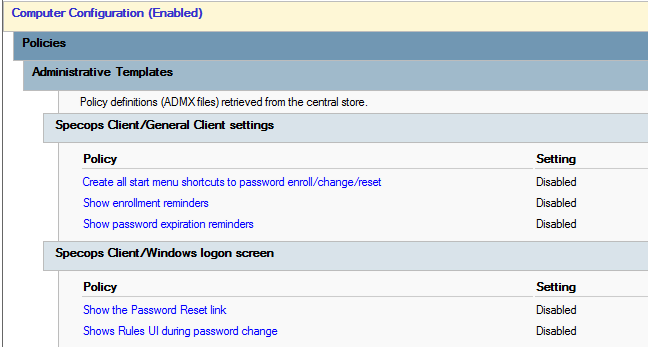
In a GPO applied to all machines targeted for the client deployment, please set all of the following settings to disabled:
- Computer Configuration/Policies/Administrative Templates/Specops Client
- Specops Client/General Client Settings
- Create start menu shortcuts to password enroll/change/reset
- Show enrollment reminders
- Show password expiration reminders
- Specops Client/Windows logon screen
- Show the Password Reset link
- Shows Rules UI during password change
- Specops Client/General Client Settings
It is also possible to set these settings directly in the Windows registry:
Windows Registry Editor Version 5.00

[HKEY_LOCAL_MACHINE\SOFTWARE\Specopssoft]

[HKEY_LOCAL_MACHINE\SOFTWARE\Specopssoft\uReset]

[HKEY_LOCAL_MACHINE\SOFTWARE\Specopssoft\uReset\Client]

[HKEY_LOCAL_MACHINE\SOFTWARE\Specopssoft\uReset\Client\CredentialProvider]
"EnableRulesUI"=dword:00000000

[HKEY_LOCAL_MACHINE\SOFTWARE\Specopssoft\uReset\Client\Settings]
"EnablePasswordResetLink"=dword:00000000
"CreateStartMenuShortcuts"=dword:00000000
"EnableEnrollmentReminders"=dword:00000000
"EnablePasswordExpirationReminders"=dword:00000000
In order to revert the settings to default, set all policy settings back to ‘not configured’ and/or delete the registry keys.